User Guide


Supported Browsers & Compatibility

IMPORTANT: To ensure an optimal experience and full functionality of the Supplier Portal, please use one of our compatible browsers: Microsoft Edge , Google Chrome , or Mozilla Firefox . Please be advised that other browser brands may not be fully supported and could result in technical issues.

1. Click on the Supplier Portal Link

(*Note: Please bookmark the link in your browser and copy the link with a new browser to access).


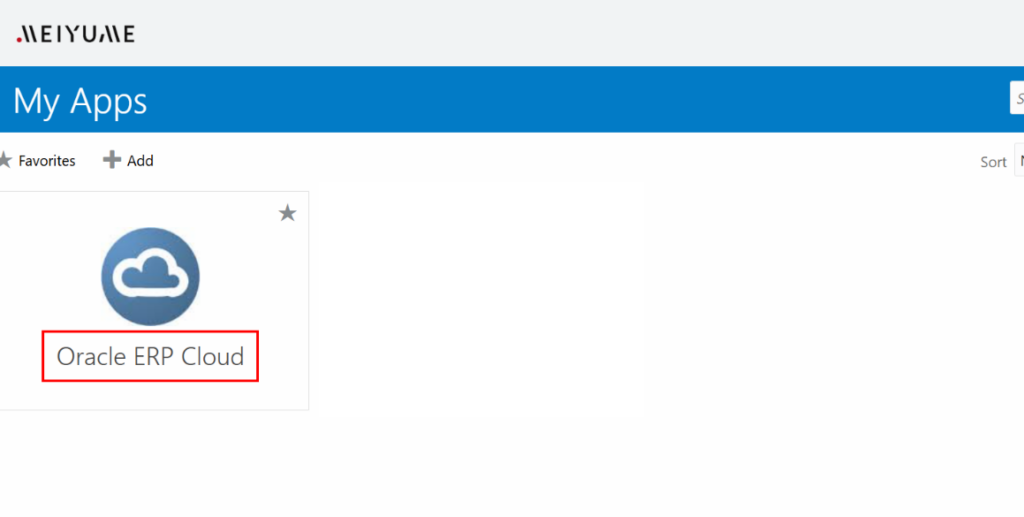
2. After that, log in with your credentials. If you see the below, click on Oracle ERP Cloud to access the Supplier Portal.

The below steps assume that you have already successfully setup your supplier portal account. If you have not done so, please refer to the topic on “Setting up your Supplier Portal Account (first-time setup)”

Meiyume Supplier Portal Oracle

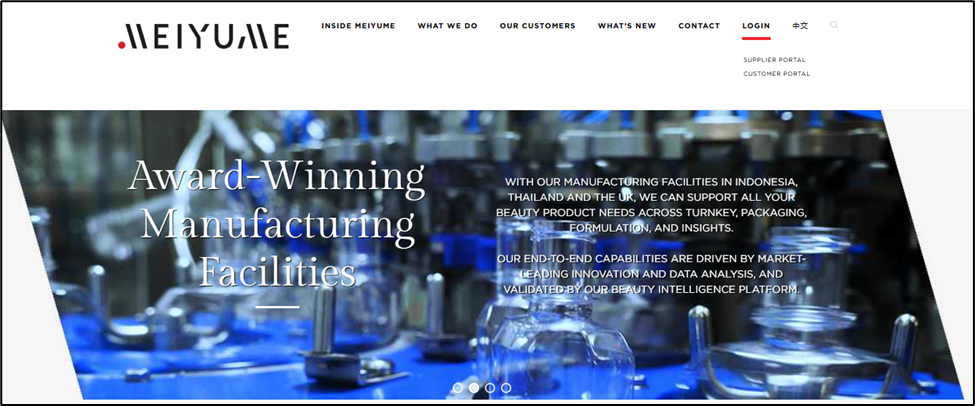
You can also login to the supplier portal through our website at Meiyume.com followed by clicking Login -> Supplier Portal

Meiyume Supplier Portal Website Login

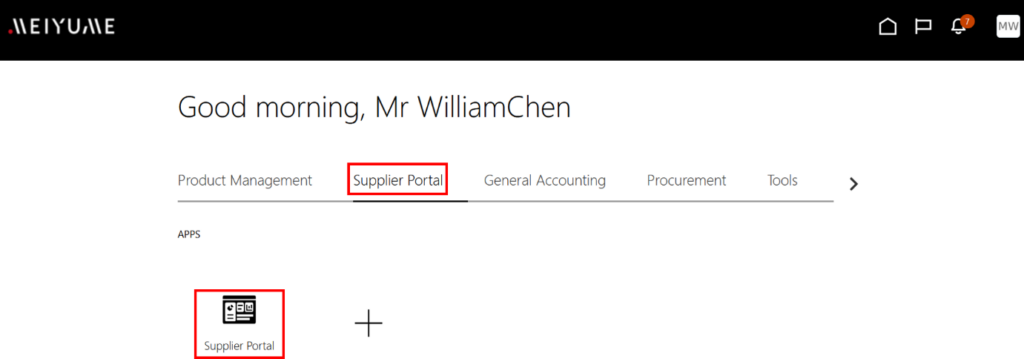
3. Once you click on Oracle ERP Cloud, you will see the Oracle landing page. Click on Supplier Portal in the Springboard and then click on Supplier Portal icon.

Meiyume Supplier Portal Springboard

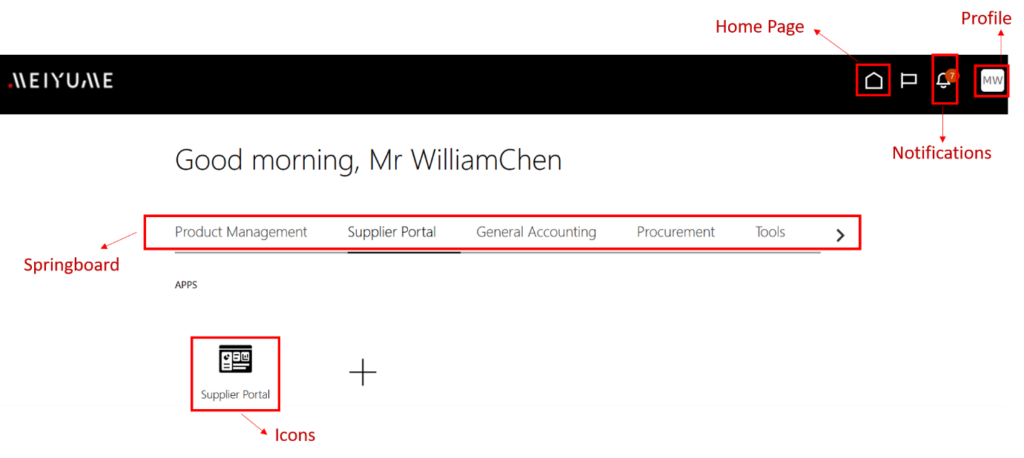
Landing page navigations as follows:

Meiyume Supplier Portal Navigation

If you have not yet setup your supplier portal account, please refer to the steps below. As the supplier contact representative, you will need to follow the steps below to setup the supplier portal (please note that 1 unique email ID for the supplier contact representative can only be linked to one supplier).


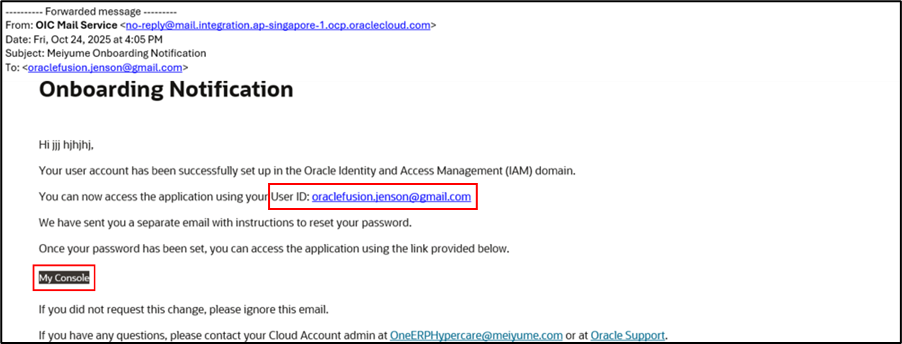
1. You will receive a welcome/ onboarding email informing you of your User ID for login. My Console contains the link to the supplier portal

Meiyume Supplier Portal Onboarding

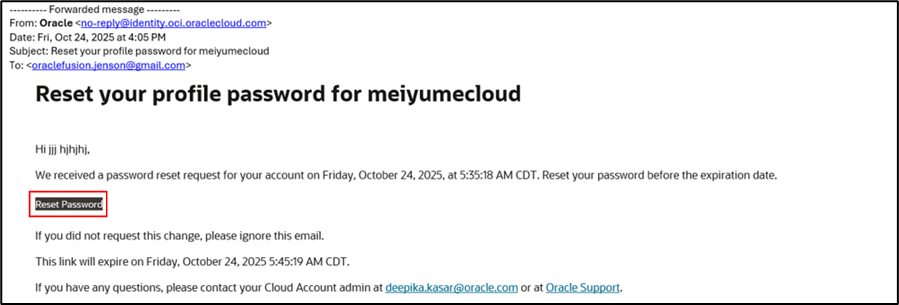
2. At the same time, another email will be sent containing a link to reset your account password.

Meiyume Supplier Portal Reset

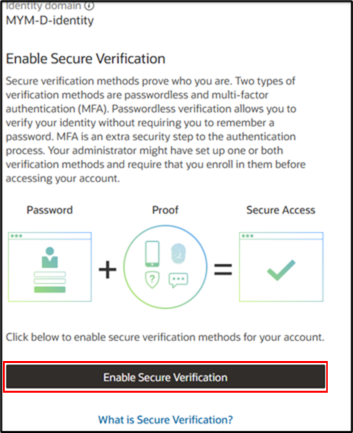
3. For first time login, you will be asked to set-up multi-factor authentication. Click on Enable Secure Verification.

Note: Users do not need to download or use any other applications on their mobile as part of the authentication process

Meiyume Supplier Portal Verification

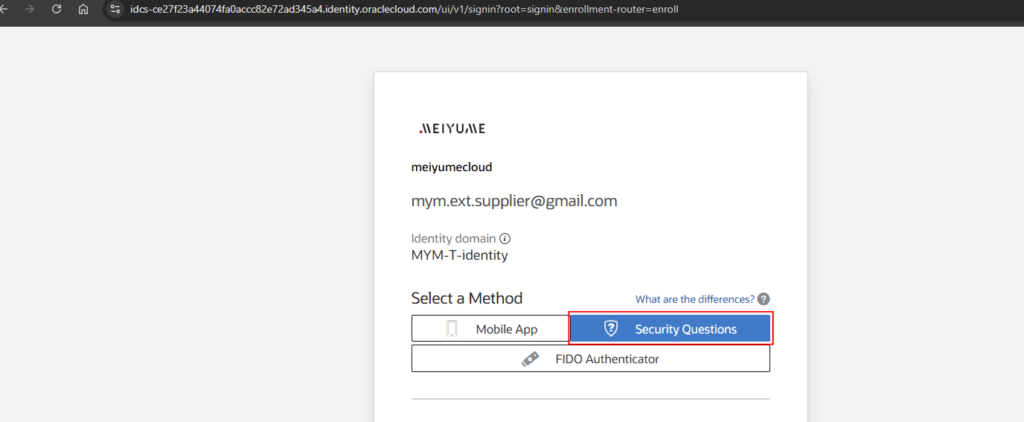
4. Click on Security Questions to proceed with the verification.

Meiyume Supplier Portal Security Questions

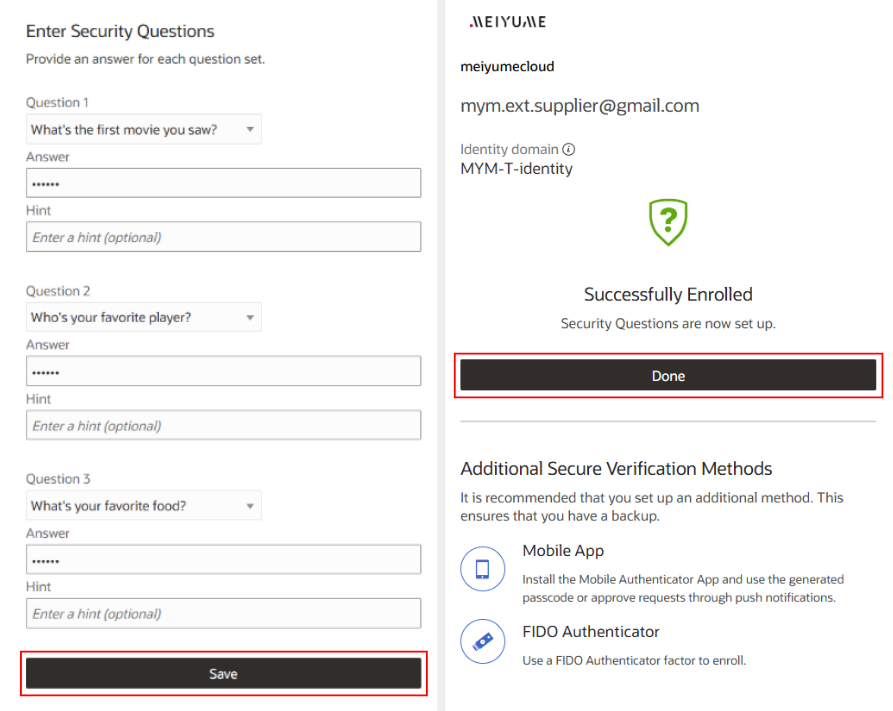
5. To configure security questions, select three different security questions from the dropdown menus and provide answers in English. Please ensure that each answer contains at least six (6) characters (Note: Enter a Hint for each question to help you remember).

After completing the selections, click Save. Once the confirmation message “Successfully Enrolled” is displayed, click Done to complete the enrollment process.

Meiyume Supplier Portal Enrolled

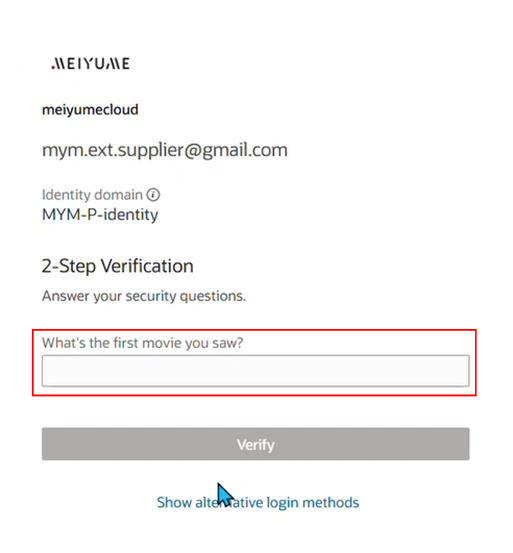
*Recurring Login (Security Question Verification) After the initial setup, each login will require a security verification: The system will randomly display one of your pre-set security questions. Please enter your answer in the text box, ensuring that it matches your original spelling exactly, and then click the Verify button to proceed.

Meiyume Supplier Portal Recurring

6. Once you have logged in, click on Oracle ERP Cloud.

Meiyume Supplier Portal Oracle

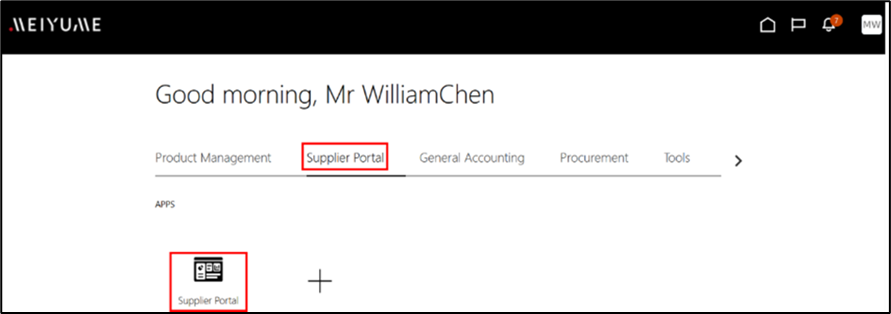
7. You will see the supplier portal landing page. Click on Supplier Portal.

Meiyume Supplier Portal

1. To update your login authentication method, please first sign in using your existing authentication method.


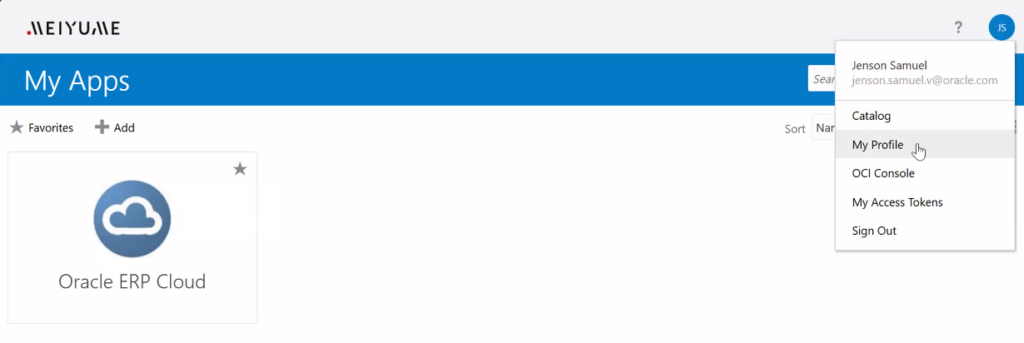
2. Once you have logged in, click on My Profile.

Meiyume Supplier Portal Oracle Profile

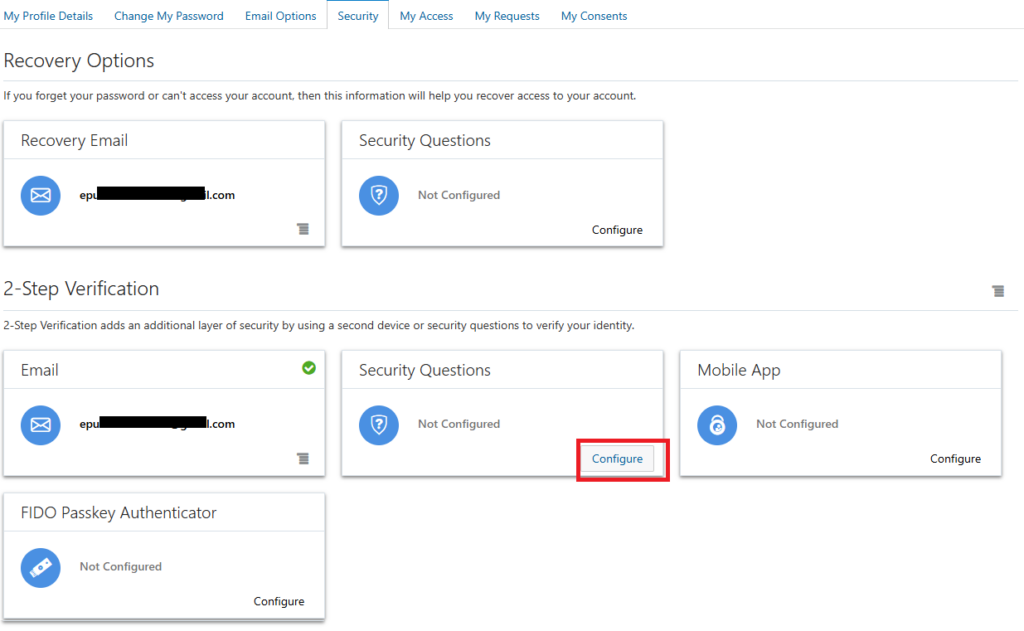
3. Under the 2-Step Verification section, select Security Questions and click Configure.

Meiyume Supplier Portal Configure

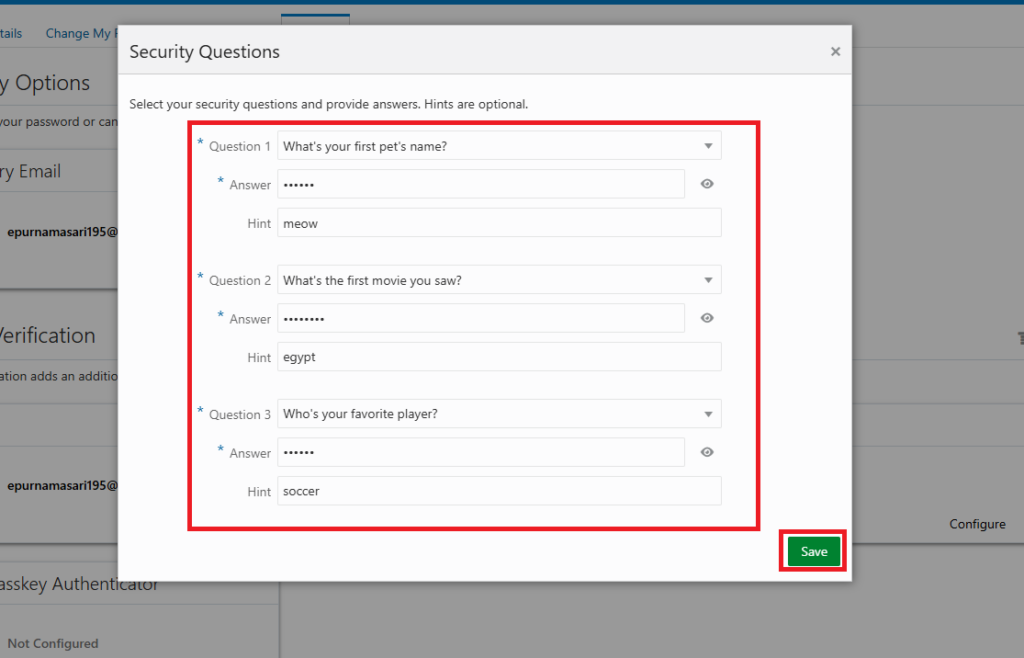
4. Set your Security Questions. After completing all fields successfully, click Save:

    • Choose three different security questions from the dropdown menus.
    • Important: Your answers must be in English.
    • Important: Each answer must be at least six (6) characters long.
    • You may add a hint to help you remember your answers.
Meiyume Supplier Portal Security Question

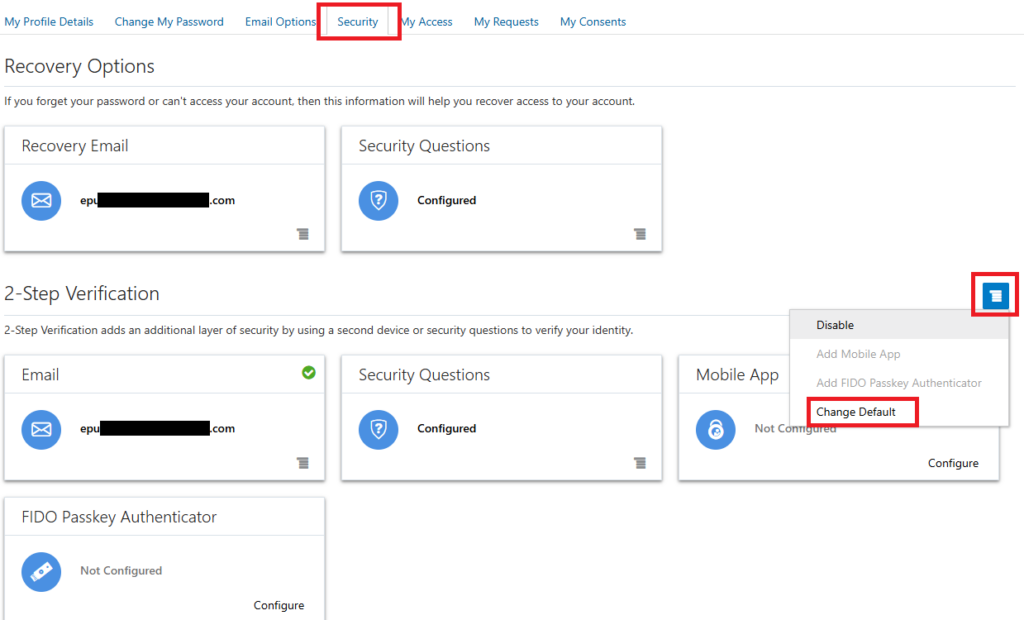
5. After saving your Security Questions, click the blue settings icon in this section and select Change Default.

Meiyume Supplier Portal Change Default

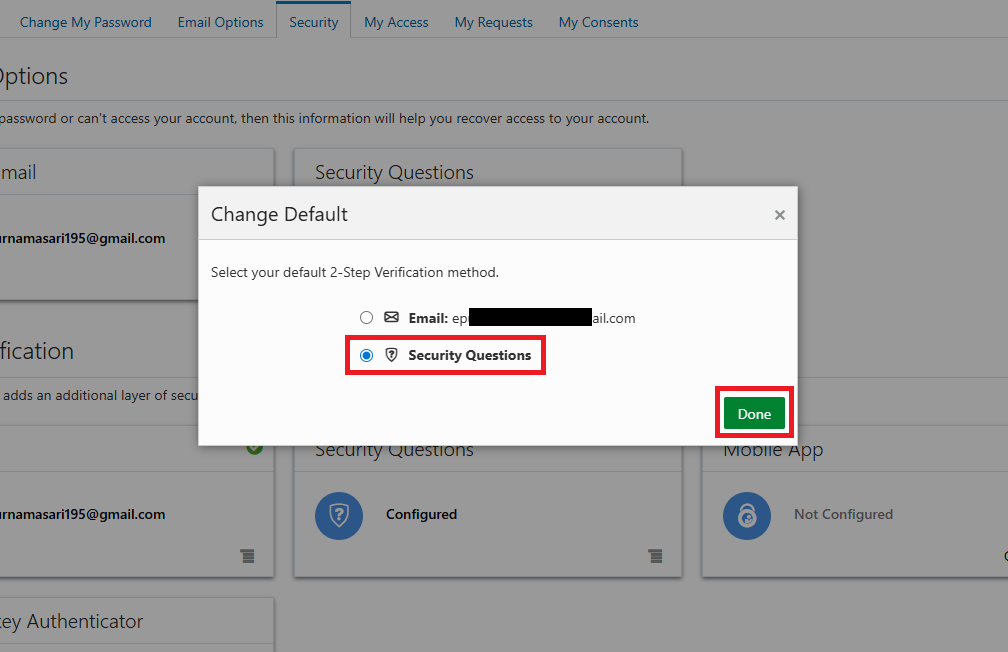
6. Select Security Questions as your default verification method and click Done.

Meiyume Supplier Portal Security Questions Done

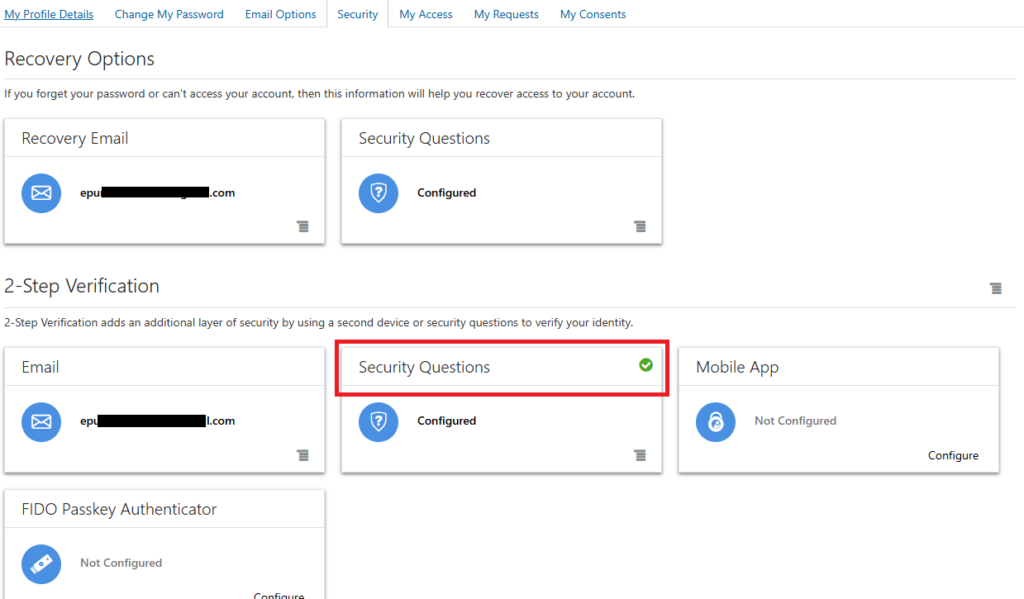
7. You will see this green tick in Security Questions box, this means change successfully.

Meiyume Supplier Portal Security Questions Green

Frequently Asked Questions

What is ONE ERP?

One ERP is Meiyume’s multi-year digital transformation initiative to consolidate existing Enterprise Resource Planning (ERP) systems to maximise efficiency through one common way of working. One ERP is powered by Oracle.

As part of the ONE ERP initiative, we will be launching the ONE ERP New Supplier Portal – a secure, web-based platform that will streamline Meiyume’s collaboration and transaction with Suppliers, enabling efficient management of orders, invoices, and supplier information.

  • Improved Efficiency: The portal will enable a faster and more efficient way of processing information (reducing manual and offline communications and files).
  • Enhanced Self-Service Functionality: Suppliers will be able to perform a range of tasks independently, minimizing the need for direct assistance.
  • Greater Transparency: The portal will provide quicker and easier access to relevant information, including order statuses and transaction records.
  • Update supplier details and manage profile updates.
  • Create and respond to a Request for Quotation (RFQ) and view award details.
  • Manage various tasks such as acknowledgement of Purchase Order (PO) and purchase agreements.
  • View various status in the system (e.g. purchase order status, payment status).
  • Receive real time notification for any actions pending or required (e.g. receive reminders for certification renewal such as business certification, third party risk audit, etc.).
  • Create PO matched invoices.

For existing suppliers, upon launch of the portal, you will automatically have access to the features mentioned in Question #4. If you are a new supplier, you will be required to self-register/onboard to gain access to the portal.